How to Test your SSE Gateway
Modern web access is no longer just a choice between HTTP and HTTPS. Browser and server also have to agree on the HTTP protocol generation: HTTP/1.1, HTTP/2, or HTTP/3 over QUIC. As of 2026, the major browsers support all three, and public web measurements show HTTP/3 support on roughly 40 % of websites.
Protocol selection is not decided in one single place. DNS responses can advertise HTTPS
service records, the TLS handshake uses ALPN to agree on the application protocol, and HTTP
response headers such as Alt-Svc can guide the browser toward HTTP/3. Different
browsers use these signals differently. Both Safari and Chrome use DNS HTTPS records for
early H3 discovery before any connection is opened. A key difference: Safari ignores
Alt-Svc entirely and can only discover H3 through DNS HTTPS records. Chrome
uses both mechanisms independently. Firefox relies on Alt-Svc only.
A Security Service Edge gateway changes this picture. Without a gateway, the browser negotiates directly with the web server. With a gateway in the path, there may be two separate connections: one from the browser to the gateway, and another from the gateway to the origin server. Protocol negotiation can therefore happen twice, and the selected protocol does not have to be the same on both sides.
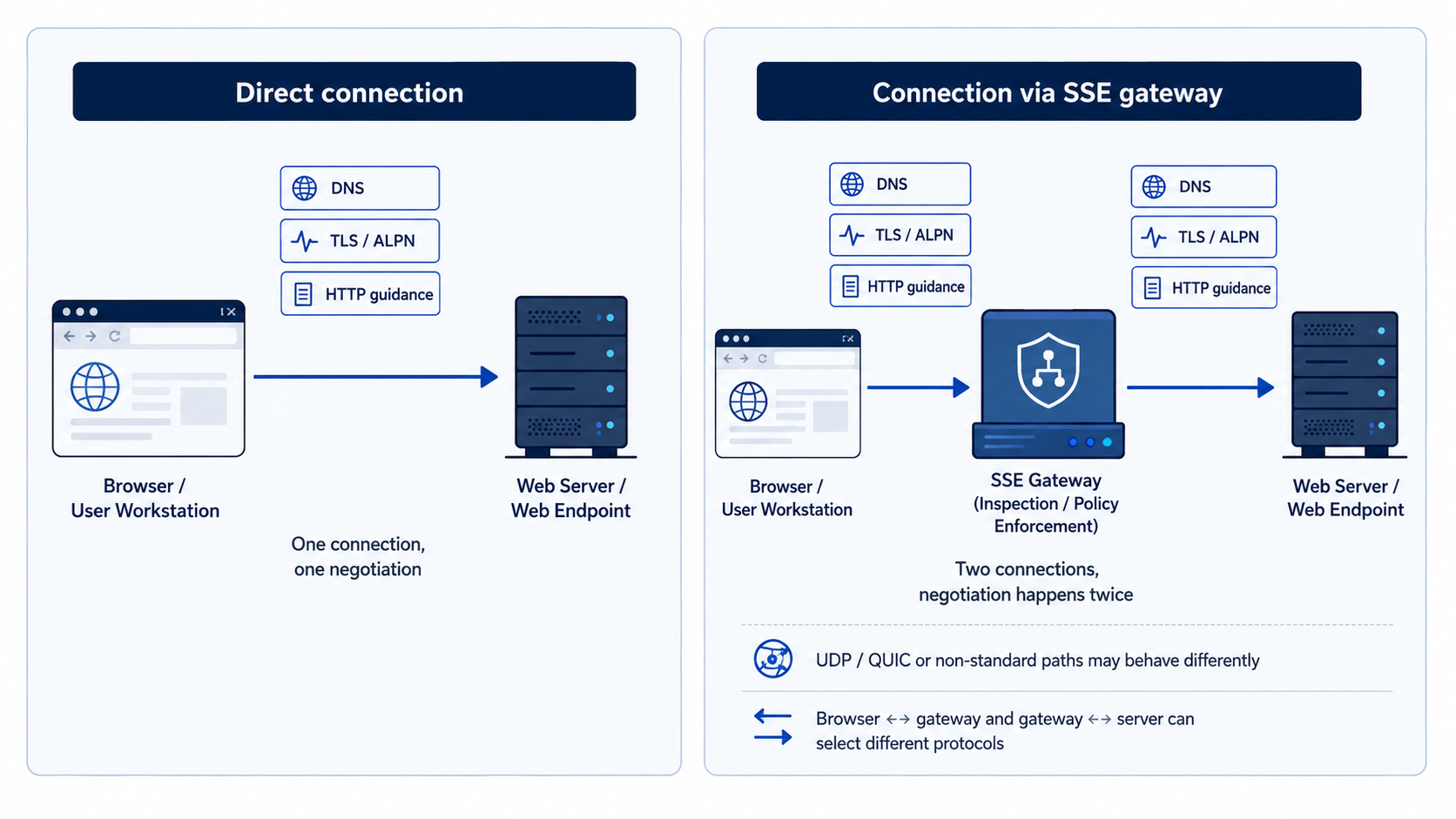
This distinction matters. A browser might speak HTTP/3 to the gateway while the gateway uses HTTP/2 upstream. A gateway might suppress HTTP/3 discovery entirely and keep both sides on HTTP/2. Or a product might only insert itself into standard TCP-based web traffic, while UDP-based QUIC traffic or HTTPS on non-standard ports is blocked, bypassed, or handled through a different policy path.
SSE TestCenter is designed to make these behaviors visible. It provides a set of controlled hostnames that simulate different server capabilities, protocol combinations, discovery mechanisms, and port choices. By opening the same tests directly, through your SSE gateway, inside your enterprise network, and from an unmanaged network, you can observe how your browser, DNS path, gateway policy, and upstream connection interact.
What you can test
The site is built around three test areas. They are intentionally small, but together they cover many of the edge cases that matter for real SSE deployments.
| Area | What it reveals |
|---|---|
| Hostname Matrix | Which HTTP versions and ports your gateway can pass, terminate, downgrade, upgrade, or block. |
| Content Filter | Whether inspection is based only on URL patterns, or whether the gateway really reads and classifies response bodies. |
| Download Test | Whether larger downloads are streamed correctly, buffered, modified, truncated, or slowed down by inspection. |
For every page, watch the protocol indicator in the header. It helps you understand which protocol reached the TestCenter endpoint. If your gateway terminates the browser connection and opens a separate upstream connection to the server, also compare this with the gateway's own logs: in such deployments, the browser-side and server-side protocols may not be the same.
Step 1 — Test protocol handling with the Hostname Matrix
Open the Hostname Matrix. The hostnames are not just aliases. Each one is configured to accept a defined set of protocols and, where relevant, a defined port. This lets you test gateway behavior under controlled conditions instead of guessing from a single successful page load.
On each page, watch the protocol widget in the header. It shows which protocol was actually negotiated for that connection, and the peer IP address as the server sees it. The IP tells you whether the server is seeing a direct client connection or a cloud gateway — useful as a cross-check against your gateway's own logs.
Work through the matrix in groups. For each hostname, load the page directly first if possible, then load it through the gateway, and record the result: loaded, blocked, timed out, downgraded, or failed during protocol negotiation.
Want an overview before diving in? The Protocol
Detection page polls all hostnames in parallel and shows expected versus actual protocol
in a single table. It is a fast way to spot where things diverge, before drilling into
individual hosts. One caveat: browsers sometimes reuse an existing connection for multiple
hostnames that share the same TLS certificate and IP address — a mechanism called connection
coalescing — which can mask the protocol each host would use in isolation. To avoid skewed
results, open the Protocol page twice: first by navigating to it from an H3 host (for
example, click through to h3.sse-testcenter.org first), then again from an H2
host such as h2.sse-testcenter.org. Note any host where results differ from
the expected column, then return to the Hostname Matrix for details.
To test each group in detail:
Reference hosts
Start with sse-testcenter.org and www.sse-testcenter.org. These
are the least restrictive hosts and are useful as control cases. If these fail, the issue is
probably not a subtle HTTP/3 or ALPN edge case; it is more likely a basic routing, certificate,
DNS, or policy problem.
Protocol-specific TLS hosts
The most important hosts are the strict protocol hosts: h1.sse-testcenter.org,
h2.sse-testcenter.org, and h3.sse-testcenter.org. They show what
happens when the origin server does not offer a convenient fallback. This is especially
important for HTTP/3: many products can handle a normal site that offers both H2 and H3,
but fail when the origin is truly H3-only. If your gateway only speaks HTTP/1.1
upstream, the H2-only host will also fail.
The combined hosts, such as h1-h2.sse-testcenter.org,
h2-h3.sse-testcenter.org, and h1-h3.sse-testcenter.org, help you
see preference and fallback behavior. A gateway may allow HTTP/2 but suppress HTTP/3, or it
may pass HTTP/3 advertisements but still choose HTTP/2 upstream. Both are valid product
choices in some environments, but they should be visible and documented.
Alternative HTTPS ports
The port 8443 hosts test a different question: does the gateway allow HTTPS
traffic on a non-standard port? Many enterprise policies only allow ports 80 and 443. If a
port 8443 test fails while the equivalent port 443 test succeeds, that is often a policy
decision rather than a protocol implementation problem.
Cleartext HTTP and H2C
The cleartext hosts test traffic without TLS. h1c.sse-testcenter.org is plain
HTTP/1.1, while h2c.sse-testcenter.org is HTTP/2 without TLS. H2C is less common
on the public web than HTTPS, but it is useful for checking whether a gateway simply forwards
plaintext traffic, upgrades or rejects it, or applies a different inspection path.
Step 2 — Test content inspection with the Filter page
Open the Content Filter page. It uses the EICAR test string, which is a harmless industry-standard anti-malware test pattern. The goal is not to deliver malware. The goal is to see whether your gateway detects known test content under different protocols, file names and packaging conditions.
The page contains two types of checks.
Obvious EICAR links
These links use recognizable names such as eicar.com or archive variants.
A gateway can block them through URL rules, filename rules, content inspection, or a mix of
these methods. If these links are not blocked, anti-malware inspection is probably not active
for that traffic path, or the gateway is not inspecting the protocol currently in use.
Dynamic links
The dynamic links are more revealing. All six URLs follow the same naming pattern — the URL alone gives no indication of what will be returned. Three responses contain EICAR, three contain benign text of the same length. A gateway that only filters by URL or filename has no basis for distinguishing them. A content-inspecting gateway should block the three EICAR responses and pass the benign ones. Two failure modes are visible here: if your gateway blocks none of the dynamic links, it is not inspecting content at all on this traffic path; if it blocks all six, it is over-blocking based on URL pattern or heuristic rather than actual content.
Run the filter tests through the same gateway path you use for normal users. Then repeat them on protocol-specific hosts where possible, for example on the HTTP/2 and HTTP/3 hostnames. This is often where meaningful differences appear: a product may inspect HTTP/1.1 and HTTP/2 deeply, but block, bypass, downgrade, or fail on HTTP/3.
Step 3 — Test downloads for speed and integrity
Open the Download Test page. It offers deterministic binary files in multiple sizes. The tests answer two separate questions.
Does the download arrive unchanged?
The page verifies the downloaded bytes against expected SHA-256 hashes. A mismatch means that something in the path changed the response body or delivered only part of it. That can happen through misapplied content injection, recompression, buffering limits, connection resets, timeout behavior, or bugs in protocol handling.
How does the gateway handle larger bodies?
Small files can look perfect even when larger files expose buffering or inspection problems. Compare the 1 KB, 100 KB, 1 MB, and 10 MB results. If the 10 MB test is much slower, starts late, or fails while smaller files pass, the gateway may be buffering the full object before forwarding it, scanning synchronously, or hitting an internal size or timeout limit.
How do protocols and the gateway affect speed?
Download speed is not just a function of network bandwidth — it is also shaped by protocol multiplexing, flow control, and any processing the gateway adds. To isolate these effects, fetch the same file under different conditions and compare the results. The most informative comparisons are:
- Direct vs. through the gateway — run the same download directly and then through your SSE gateway. The difference is the gateway's processing overhead, including any buffering or inspection latency.
-
H1 vs. H2 vs. H3 — navigate to a protocol-specific host via the
Hostname Matrix and use the Fetch & Verify button on the
Download page from there. Repeating this from
h1,h2, andh3hosts isolates per-protocol processing overhead and flow-control differences introduced by the gateway. - Gateway-side vs. server-side protocol — if your gateway terminates H3 from the browser but connects H2 upstream, compare the measured speed on that path against a direct H3 and a direct H2 download. This shows what the protocol conversion costs in practice.
For a repeatable command-line measurement, use curl with the protocol flag of your choice and pipe through sha256sum to verify integrity at the same time:
curl -s --http2 https://sse-testcenter.org/download/10m.bin | sha256sum
curl -s --http3 https://sse-testcenter.org/download/10m.bin | sha256sum
Compare the results with the hashes shown on the Download page. When testing through an
explicit proxy, add your gateway with curl's -x https://your-gateway.example:port
option.
How to interpret common results
The following table summarizes typical observations. The right interpretation always depends on your product architecture and policy settings, but these patterns are a good starting point for investigation.
| Observation | What it usually means |
|---|---|
| Reference hosts fail | Start with basic DNS, routing, certificate, proxy, or policy configuration before analyzing protocol edge cases. |
| HTTP/3 never appears | The gateway, DNS path, browser policy, or network blocks QUIC or suppresses HTTP/3 discovery. |
| H3-only host fails | The H3-only host has no TCP listener — only a UDP/QUIC port. Browsers that need a TCP connection first to learn about H3 (Chrome, Firefox via Alt-Svc) will fail outright. Safari reads the DNS HTTPS record and attempts QUIC directly, but if the A record and HTTPS record responses arrive out of order on the first visit, that attempt may also fail; a reload typically recovers. A gateway that cannot reach H3-only origins will produce the same failure regardless of browser. |
| One host is noticeably slow, others are fine | Likely an H3-only host with UDP/QUIC blocked somewhere in the path. Dual-stack (H2+H3) hosts show no visible delay under a UDP block — the browser's TCP attempt completes in the background while QUIC is silently dropped. An H3-only host has no TCP fallback to race against, so the browser must wait out QUIC's retransmission timeout (typically a few seconds) before giving up. |
| Chrome stays on H2 after repeat visits | Alt-Svc may be stripped, blocked, or not cached; check response headers through the gateway. |
| Safari does not try H3 where expected | DNS HTTPS records may be missing, filtered, or changed by the resolver path used with the gateway. |
| Port 8443 fails while port 443 works | The gateway or firewall likely restricts HTTPS to standard ports. |
| H2C host does not open in a browser | This is expected browser behavior, not a gateway problem. HTTP/2 without TLS (H2C)
is defined in the standard (RFC 9113),
but all major browser vendors have agreed not to implement it — their H2 support is
TLS-only. Only dedicated tools such as curl (--http2-prior-knowledge)
can exercise an H2C endpoint directly. SSE TestCenter is one of the few public sites
that expose an H2C listener, which makes it useful for verifying whether your gateway
passes or rejects H2C traffic from non-browser clients. |
| Obvious EICAR links are blocked, dynamic EICAR links pass | The gateway may rely on URL or filename filtering without full response-body inspection. |
| Benign dynamic links are blocked | The gateway is over-blocking; review heuristic, archive, or content-classification policy. |
| Download hash mismatch | Something modified, truncated, recompressed, injected into, or otherwise corrupted the response body. |
| Large files are slow or fail, small files pass | Look for scan-before-deliver buffering, object-size limits, timeout limits, or flow-control issues. |
Useful command-line tools
Browser tests are convenient because they show what a real user is likely to experience. Command-line tools are useful when you need repeatability, logs, or a precise protocol choice.
-
curl — use
--http1.1,--http2, or--http3to request a specific protocol. Add-vto see protocol negotiation and response headers. -
curl through a proxy — add
-x https://your-gateway.example:portwhen you want to force a request through a specific gateway instead of relying on system proxy settings. -
dig or drill — query DNS HTTPS records, for example
dig HTTPS h2-h3.sse-testcenter.org. Compare public DNS with the resolver path used by the gateway. -
openssl s_client — test TLS ALPN behavior directly:
openssl s_client -connect h2.sse-testcenter.org:443 -alpn h2 -quiet
Change the ALPN value to confirm whether a strict hostname accepts or rejects a protocol.
What to do with the results
A useful test report does not need to be long. For each gateway, record the browser, gateway mode, DNS path, hostname, observed protocol, result, and any block or error page. The value is in the comparison: direct versus gateway, HTTP/2 versus HTTP/3, small download versus large download, obvious URL versus dynamic content.
If a result surprises you, the next step is usually to compare three views of the same request: what the browser reports, what the gateway logs report, and what the TestCenter page reports. Differences between those views often reveal whether the gateway is forwarding, terminating, re-originating, downgrading, or bypassing a particular traffic path.
Questions or findings worth sharing: testcenter@cloudfellows.de